| Jean LeLoup & Bob Ponterio SUNY Cortland © 2017 |
PowerPoint tends to be structured in a way that encourages linear presentation, making it all too easy to fall into the pattern of presenting slide after boring slide. But with a little effort, it is possible to use some basic elements of the program to create interactive tools that help engage the student and break things up a bit. We will see how to create a yes/no feedback loop using hidden slides to allow students to answer questions and receive feedback about which answer is correct.
We will also see how to use hidden slides for optional, additional information.
Here below we see a group of slides. The first two (slides #1 & #2) pose a question and offer possible answers. When the student clicks on an answer (either on the image or on the text), we want to jump to the slide that provides the appropriate feedback (#3 or #4): Great job! or Try again. From these feedback slides, we want to return to the correct (originating) question slide.
Of course, we never want to accidentally fall through to a feedback slide inappropriately as this would certainly confuse the student. Instead, we want to skip over those feedback slides to whatever comes next (#5).
In addition, in this case, we do not want to create separate feedback slides for each
question. It is more efficient to have a single yes/no feedback group
for the entire presentation. However, we could also have used separate feedback groups for each question in order to make the feedback more specific to the error.
How do we do this? The simple part is creating the
question slides and a set of two feedback slides, as seen above. |
 |
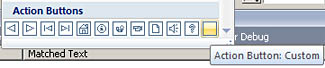
We want to have control over what the Powerpoint presentation does, so we will avoid default functions that might lead to unexpected results. One way to prevent a mouse click on the feedback slide from doing something we don't want is to use an Action Button covering the entire slide to intercept any mouse clicks. Once the student has seen a feedback slide, we want to jump
back to the original question slide. We can create an Action Button
that is invisible and that covers the entire slide. Use the menu to
select Insert /
Shapes / Action Buttons, then draw the button covering the entire
slide. |
|
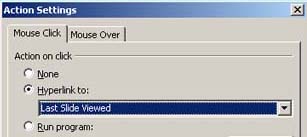
| After you create the button covering the slide, you can right-click on the button and select hyperlink to open a window allowing you
to change the Action
Settings. If you hyperlink to "Last Slide Viewed", clicking
anywhere on the screen will now take to back to whichever slide was viewed
just before coming to this feedback slide, thus completing the "question-response-feedback-question" loop. |
 |
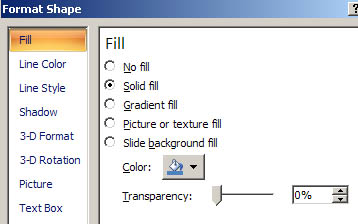
Of course, the Action Button now covers up the content of the slide, so we need to make the button invisible (transparent). Right-click on the button and select Format Shape. Under Fill, change the transparency to 100% by dragging the slider. Voilà! an invisible button covering the whole slide! Do the same thing for the other feedback slide as well. You can copy and paste a button from one slide to another to save time. (Note that you could insert and modify shapes and access the Shape Fill format through the Format menu. There's more than one way to skin a cat.) |
 |
Now on any slide in your PowerPoint presentation, you can hyperlink from an image, from a button, or from any text to one of these right or wrong answer feedback slides. Clicking anywhere on the feedback slide will then take you back to the slide you came from. It doesn't really matter where you put this feedback slide group in your presentation because if you accidentally fall through to these hidden slides, your presentation will just skip over them. However, it does make sense to group them in a way that is meaningful to you so they will be easy to find and you will understand how you meant it to work when you look at the project again in 5 years! Good practice is to group all such out-of-sequence slides together, perhaps at the end of your PowerPoint slide show or at the end of a particular group of slides that go together, and jump over them to avoid getting to them by accident.
It can also be good practice to turn off automatic advancing of slides all together (Transitions / Advance Slide - turn off "on mouse click" then apply to all). Then you need to build in button controls for all movement through the presentation. Simply falling through to the next slide by clicking anywhere will no longer work.
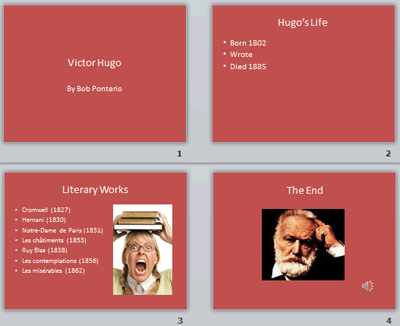
Let's take our Victor Hugo Powerpoint from a previous lesson and add some additional interactive information about Hugo's Life.
We will insert three additional hidden slides with information about Hugo's life.
Early life
Victor Hugo grew up during the reign of Napoleon (until Waterloo in 1815) and later during the Restoration of the French monarchy (Louis XVIII & Charles X).
Works
Victor Hugo was a prolific writer who is well known today for his many major French novels, plays, and poems.
He was the leader of the movement called French Romanticism.
He also played an important role in French politics, mostly supporting the poor - Les Misérables - and had to live part of his life in exile.
Death
Hugo returned to France from exile in 1970 and was welcomed as a national hero and treasure.
His 79th birthday was celebrated with a parade lasting six hours. It passed before his home where he watched from his window.
When he died at the age of 83, the entire country went into mourning
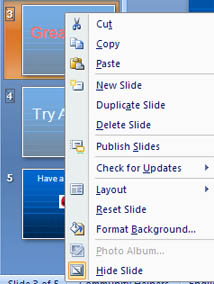
We can hide those three slides and hyperlink to them from Action Buttons on the Hugo's Life slide. Finally, we can use an invisible Action Button covering each of the hidden slides to return to the last slide viewed.
Take a look at the modified Powerpoint: New Victor Hugo Powerpoint
Creating an Interactive PowerPoint Lesson for the Classroom : http://www.thejournal.com/articles/14916_1
Using Invisible Buttons in a PowerPoint Slide Show : https://www.internet4classrooms.com/pp_inv_buttons.htm
Powerpoint 2016 - Action buttons : https://www.gcflearnfree.org/powerpoint2016/action-buttons/1/
How to Create an Interactive PowerPoint Elearning Module: http://www.articulate.com/rapid-elearning/how-to-create-an-interactive-powerpoint-elearning-module/