1. Open KompoZer. KompoZer automatically begins with an open blank web
page. (You can open a new blank page at any time by selecting File / New or by pressing the New button.)
2. Make sure that you are looking at the Normal View or Design View
(not HTML Tags, Source or Preview). Think of this as typing in your
word processor. Type your name, title, department & institution,
office location, and telephone number on separate lines.
3. Select your name, just as you would in your word processor.
4. Change the font from the Default Font (Variable width) to Helvetica, Ariel (use the Format / Font menu). Then change it again using the Font Format dropdown box below the Paragraph Format box at the top left of your Document window. What are some of your other font choices?
5. Make your name larger.
(Use Format / Size or  in the text Properties format area.)
6. Change the text color to a color of your choice using the Format / Text Color menu or the  pop-up
color window. The color can be selected using a few different color selection
tools, but colors are coded in your page as a 6 figure hexadecimal number
(that's like having 16 fingers to count with). Red is FF0000 (FF in
hexadecimal is 255 base ten, so this means 255 red, 0 green, 0 blue).
You don't really need to know those color codes, but sometimes they can be useful for
making sure you have exactly the same color in two places.
pop-up
color window. The color can be selected using a few different color selection
tools, but colors are coded in your page as a 6 figure hexadecimal number
(that's like having 16 fingers to count with). Red is FF0000 (FF in
hexadecimal is 255 base ten, so this means 255 red, 0 green, 0 blue).
You don't really need to know those color codes, but sometimes they can be useful for
making sure you have exactly the same color in two places.
7. Make your name Bold (B) and Italic (I). You may use Format / Text Style or the buttons. 
8. Center your name using the alignment icons in the Properties, just like in a word processor.

9. You decide that your italic centered name looks awful. Realign
it to the left margin and remove the italic format.
10. Create a folder on your USB flash drive or the hard drive; be sure to give this folder a meaningful name such as icc523-projects. This is where you will save your new web page. Now save the page in a the folder. A page has title, for instance, my title might be Ponterio - ICC 523 Projects. A page also has a filename, for instance index.html. This is the default file name for a folder, so it will be the page that will automatically open when someone browses to your folder. You will use this a lot, so more on this later.
11. Insert a blank line after your contact information. Next type the names for your class projects:
Project 1
Project 2
PowerPoint Project
Project 3
Final Project
Add a blank line after the project list, and insert a horizontal line. (Insert / Horizontal Line)
Next type a copyright notice. (Insert / Characters and Symbolsw / Copyright)
© Your Name, year.
Save your Work!
12. Then
select your project list.
Make them a numbered or bulleted list.
13. Perhaps that was a bad idea. Remove the numbers or bullets and indent the lines instead.
14. Select your school name so you can turn it into a link. Click on the link button
and type (or copy and paste) the URL for your school or department web page. (For example, our Modern Languages Department page is:
http://www2.cortland.edu/departments/modern-languages/
15. You could also right-click on the highlighted text and select Create link to open the link properties window.
The results are the same as using the buttons.
It is always a good idea to copy and paste the URL to make a link.
To link to one of your own pages in your own project in the same folder, you would just use the file name in the Link box rather than the entire URL. In this case, you can locate your file in your folder and point to it.
16. Look at the page title at the top of your KompoZer window. Let's edit the page title to make it more meaningful. Open the Format / Page Title and Properties menu. Type a new page title or edit the one you wrote earlier, for example, Bob's great and wonderful project page. KompoZer
will ask you for a page title if you try to save your page without
first adding one. Every page should have a meaningful page title that
appears in the title bar at the top of the browser window ("untitled" is a bad title). Remember that your page
also will have a file name when you save it. These are two different things, don't get them confused. You don't put spaces in file names, but you can use them in your page title.
17 .
Change the background color of the page. Use Format / Page Colors and Background or click the background color icon . Pick a color of your choice, but make it very light.
Never use a background color that makes it hard to read your text. Style should support your message, not get in the way.
Positioning things on a web page can be a bit confusing. We have seen that we can left align, center or right align items. What if we want to do all three? A Table can help us with positioning text or images. (CSS format is a better technique, but it is more complex. Tables are much easier to learn.)
18. Let's use a table to position the things on our page. Make a table by positioning your cursor under your name and clicking
on the table button or select Insert / Table or Table / Insert.
More choices than you can shake a stick at! Give the table 1 row and 2
columns. Double-click on the table to open the table properties and
make the table width 95 percent of your window.
19. Select your personal information (except your name). Cut the text (ctrl-x) and Paste it (ctrl-v) into the left pane or cell of your table.
20. Make sure that a photo or image that you want in your page is on
your USB flash drive or hard drive in the same folder as this index.html page you are working on.
If you don't have a photo, download one (right-click / save picture as) from this page: http://web.cortland.edu/ponterior/ or from anywhere you like. Just don't use anything too big.
21. Place your cursor in the right pane or cell of your table and click the Image button or select the menu item Insert / Image. Find the file name of the image that you wish to insert.
22. From inside the table properties window, be sure you are looking at the table tab, not the cell tab (tables are made of cells). Now the Properties windows shows the Table Properties (see below). Align it to the right. Remove the border line by changing the the border from 1 to 0 pixels (an invisible table is a good way to control positioning).
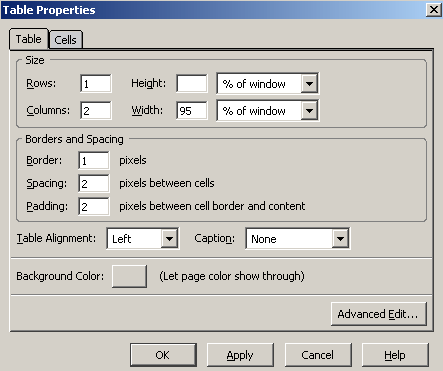
Notice that the sizes of the table properties and table cell properties allow you to use absolute sizes (pixels) or to use a percentage. You can also change the table background color if you wish.
Do the same thing for you project list, but this time put the projects in the right hand cell of your table and an image in the left hand cell.
23. If you did not want to use a table to position your project list, you could use horizontal lines to set the projects off.
Place your cursor below the table and select Insert / Horizontal
Line.
Add two horizontal lines to your page here. One right below the
other. Note that you can also insert a variety of other special
characters from here. Horizontal lines can help separate parts of your page. You could place your projects between these lines if you wish or delete the lines if you don't need them.
Save your work!